
How to Set Up Your First Automation in GoHighLevel (Step-by-Step)
Dr. Bollus | May 16, 2026 | 12 min read
If you just got access to GoHighLevel and you have been clicking around wondering where to start, automations are the right place.
They are the engine behind everything GHL promises; the automatic follow-ups, the instant responses, the workflows that run while you sleep. Once you build your first one, the rest of the platform starts to make a lot more sense.
This guide walks you through setting up a real, working automation from scratch. Not a theoretical walkthrough; an actual sequence you can use in your business today: a New Lead Follow-Up Automation that sends an instant response the moment someone submits a form or enquiry on your website, then follows up again if they do not reply.
By the end of this guide, you will have a live workflow running in your GHL account.
Before You Start: Two Things to Understand About GHL Automations
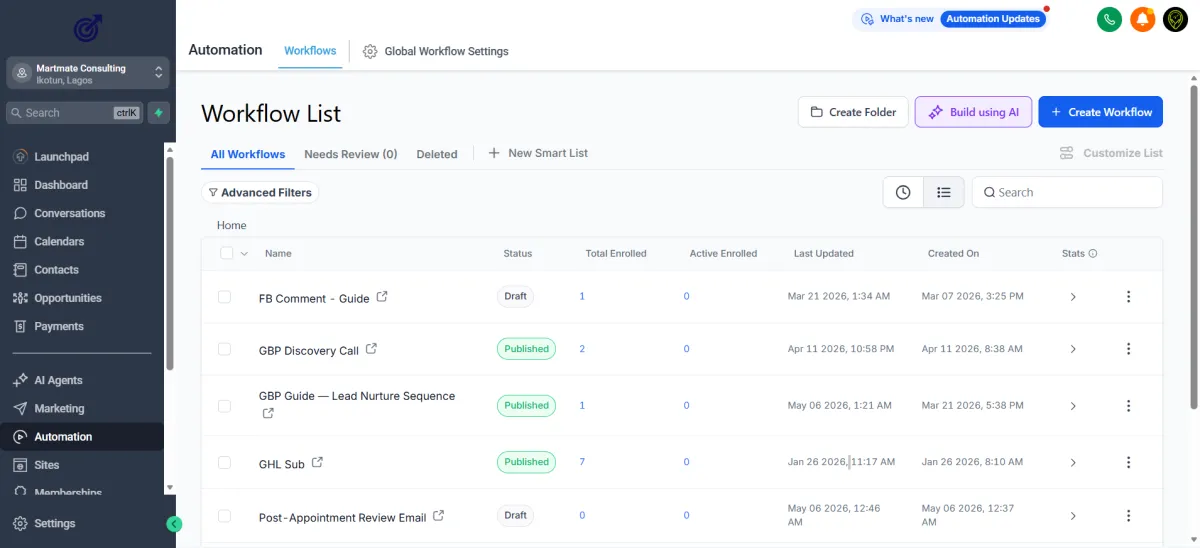
GoHighLevel (GHL) calls its automations "Workflows." You will see this word everywhere inside the platform as you see in the image above, so get familiar with it now. A Workflow is simply a set of instructions that tells GHL: "When THIS happens, do THAT."
Every workflow has two core parts:
A trigger is the event that starts the automation (e.g., a form is submitted, a contact is added, a tag is applied)
An action is what happens after the trigger fires (e.g., send an SMS, send an email, wait 24 hours, assign to a pipeline stage)
Keep this in mind as you follow the steps below.
The Automation We Are Building
Name: New Lead Instant Follow-Up
What it does: The moment a new lead submits your enquiry form, they receive an instant SMS or email acknowledgement. If they do not respond within 24 hours, they get a polite follow-up message.
This is one of the highest-impact automations any business can have. Speed of response is one of the strongest predictors of whether a lead converts.
Studies consistently show that responding within the first 5 minutes dramatically increases your chances of closing. This automation makes that happen automatically, every time, even at 2am.
Step 1: Log Into Your GoHighLevel Account and Navigate to Workflows
Once you are inside your GHL dashboard (your subaccount), look at the left-hand sidebar. You are looking for the "Automation" menu item. Click on it.
This opens the Workflows section as you can see in the screenshot above. You will see a list of any existing workflows (if you are starting fresh, it will likely be empty or contain a few GHL sample workflows).
In the top right corner, click the "+ Create Workflow" button.
GHL will give you five options:
- Start from scratch
- Build using AI
- Select from template
- Import from a campaign
- Company-based workflow
For this guide, select "Start from Scratch." This way, you understand exactly what you are building rather than inheriting settings you do not understand.
Give your workflow a name at the top. Call it something clear like: New Lead Follow-Up — [Your Clinic's Name].
Step 2: Set Your Trigger
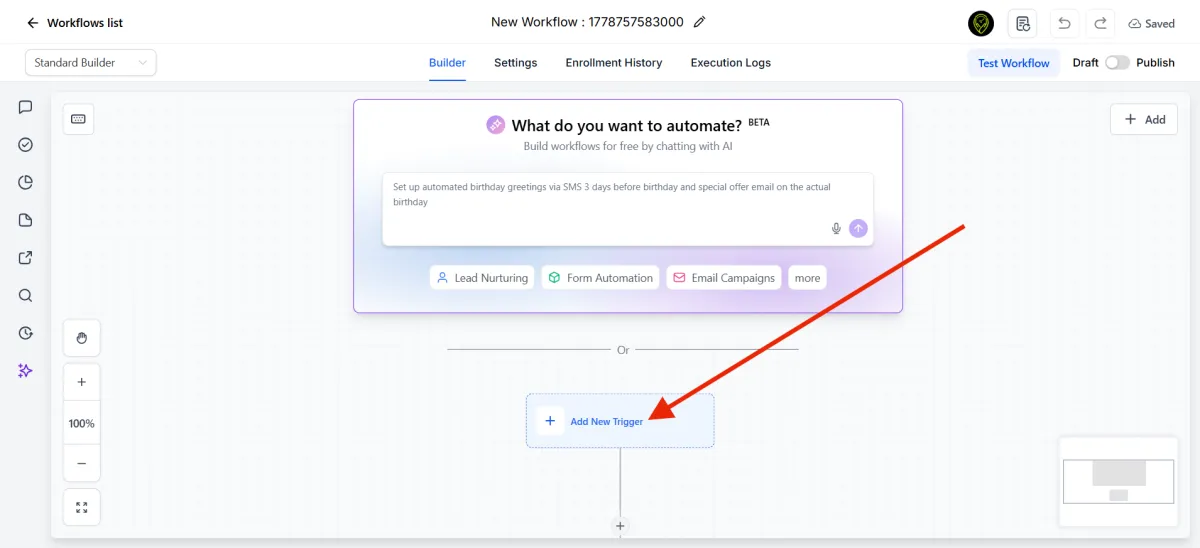
You will see a large panel with a "+" button and the words "Add New Trigger." Click it.
A panel will slide open on the right side showing a list of available triggers. For this automation, we want the workflow to fire whenever a new lead submits a form. Select:
"Form Submitted"
Once selected, GHL will ask you to configure the trigger. You will see a dropdown that says "Select a Form." Click it and choose the specific enquiry form on your website or landing page that you want this automation to respond to.
If you have not yet built your form inside GHL, you can do that under the "Sites" section in the sidebar — but for now, you can select "Any Form" to proceed with building the automation and connect a specific form later.
Click "Save Trigger" once done.
You will now see your trigger card sitting at the top of the workflow canvas. The next step is to add your first action directly below it.
Step 3: Add Your First Action — The Instant Response Email
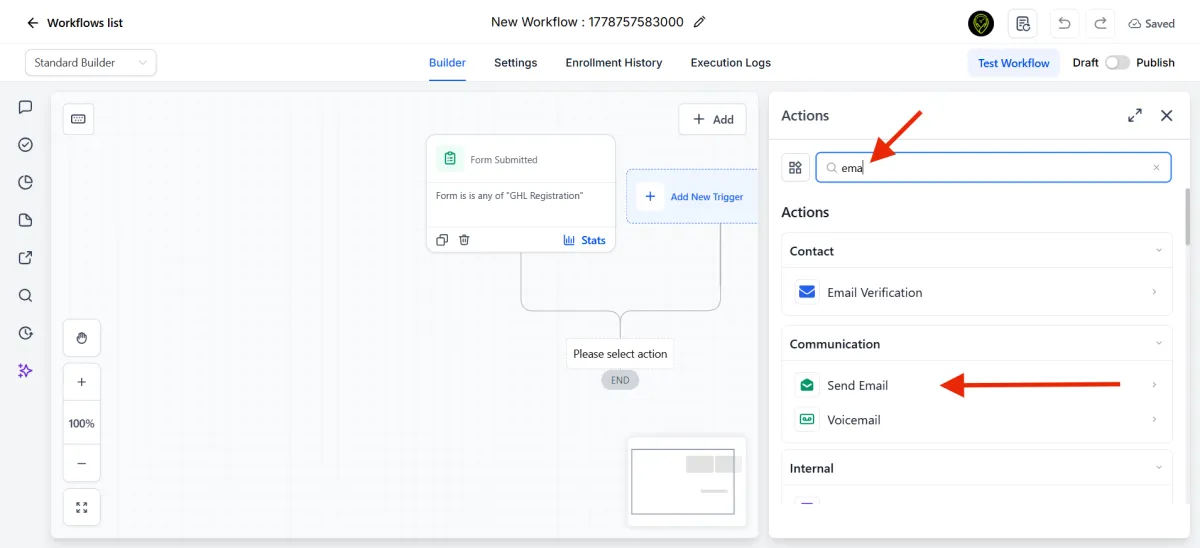
Click the "+" button below your trigger card. This opens the actions panel on the right side.
You will see a long list of action types. For our first action, we want to send an immediate email to the new lead. Search for email and select "Send Email"
For Nigerian businesses, WhatsApp/SMS tends to have higher open rates for initial contact. However, WhatsApp requires a separate $10/month subscription while Nigeria is not among the countries currently supported by GHL's phone system. If you desire to use SMS, you will need to purchase a phone number from one of the supported countries.
So, this example uses email. If you prefer WhatsApp or SMS, the process is identical — just select the appropriate action type.
Configuring the Email action:
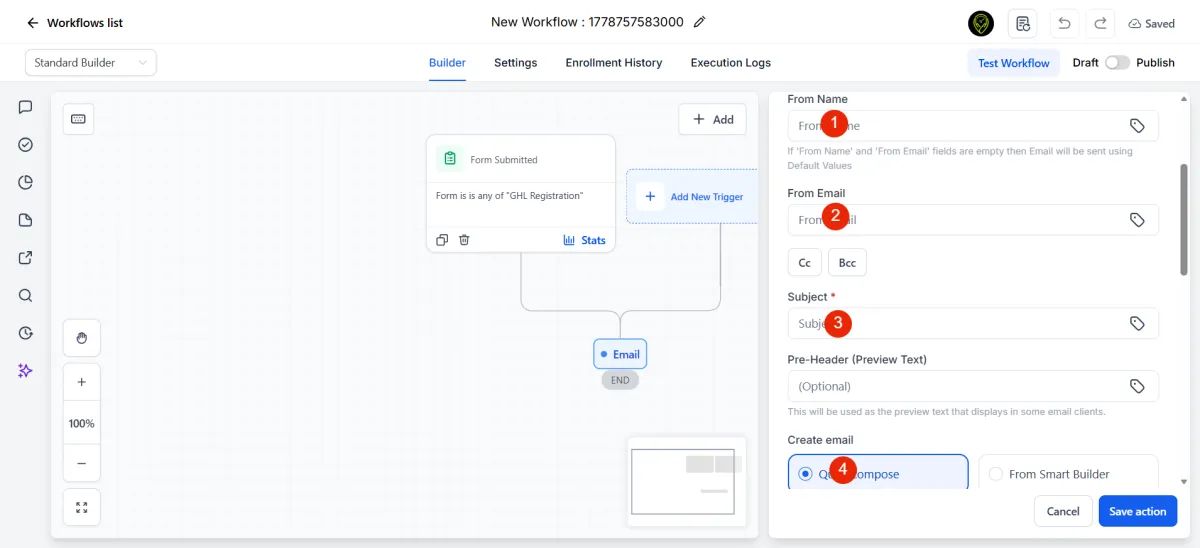
Once you select "Send Email," a configuration panel opens. Fill in the following:
1. From Name - Type in the name you want your new lead to see as the sender
2. From Email - Type in the email address you want send your email from
3. Subject - Input the subject of the email message
Pre-header (preview text) - optional
4. Create email - Choose how you want the email to be created: a quick compose, use a template, or build from scratch with a smart builder.
5. Type your message - Input the body of your message in the space provided
6. Additional settings - You don't need to do anything here unless you know what you are doing
7. Test email - This feature allows you to send a test email. I recommend using to see how your email will look when a new lead receives it
Click "Save Action" when done.
You have now built the core of your automation: form submitted → instant SMS sent. But we are going to make it more powerful by adding a follow-up step.
Step 4: Add a Wait Step
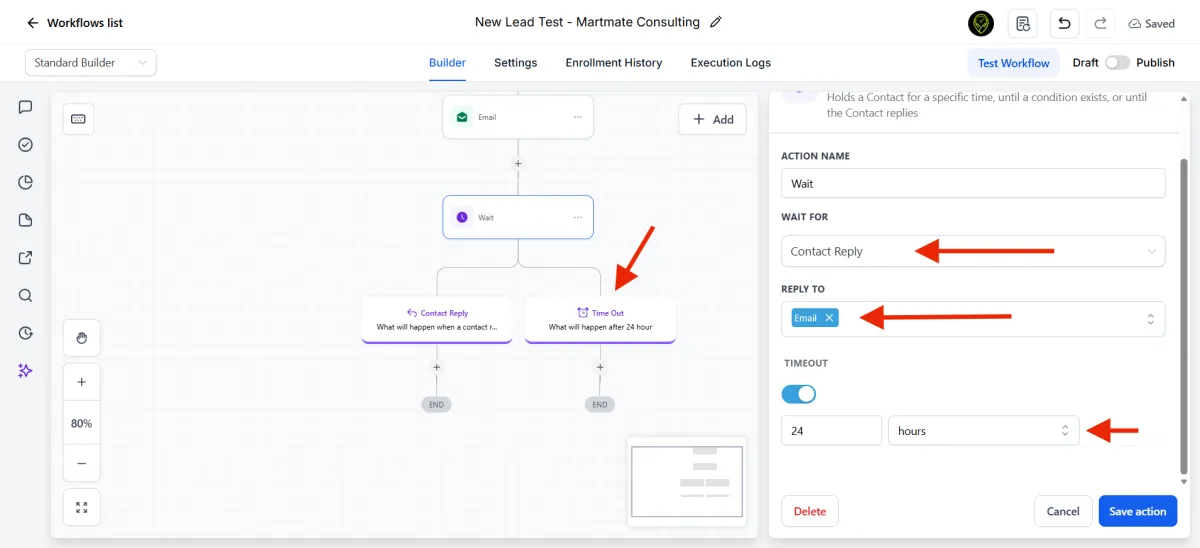
Before adding the follow-up email, we need to tell GHL to wait for a reply. If someone just received an email, you do not want to send another one 30 seconds later. We need to wait for a reply within 24 hours. If no reply comes, the next action proceeds.
Click the "+" button below your Email action. From the actions list, select "Wait"
Configure the wait step:
Wait for: Select "contact reply"
Duration: Set it to 1 day (24 hours)
This tells GHL: after sending the first message, wait 24 hours for reply before doing anything else.
Click "Save Action."
Step 5: Add the Follow-Up Email
On the Time-out branch (no reply received within 24 hours), click "+" and again select "Send Email" (or SMS).
Write a friendly follow-up email. For example:
Hi , just checking in — did you get a chance to see our earlier email? We'd love to help. Reply here or call us on [your number] whenever you're ready.
Keep it light. No pressure, no desperation. Just a gentle reminder that you are available.
If the receiver replies to the email, the workflow will automatically end, but you can choose to remove the contact from the workflow. For this example, we will just leave it like that.
Click "Save Action."
Step 6: Publish Your Workflow
Look at the top right of the workflow builder. You will see a toggle or button that says "Draft / Publish." By default, new workflows are saved in Draft mode — meaning they exist but are not actually running yet.
When you are ready to go live, click "Publish."
The toggle will switch to show the workflow is now Active. From this moment, every time a new lead submits your form, this automation will fire automatically — instant acknowledgement, 24-hour wait, and a follow-up if they have gone quiet.
Step 7: Test Your Workflow Before Relying On It
Never assume a workflow works correctly without testing it first. Here is how to do a quick test:
Go to your live form (or a preview of it)
Submit a test enquiry using your personal phone number or email
Check that you receive the instant email within a few seconds
Go back into GHL and find the test contact under "Contacts"
Click on the contact and look at their "Workflow" tab — you should see them enrolled in your New Lead Follow-Up workflow with the current step shown
If the message did not arrive, check:
That your workflow is Published (not Draft)
That your email number is configured correctly under Settings → Email
That the form you selected in the trigger matches the form you submitted
Common Mistakes to Avoid With Your First GHL Automation
Leaving the workflow in Draft mode. This is the single most common mistake. Build it, test it, then publish it. A workflow in Draft mode does nothing.
Using no merge fields. Sending "Hi there, thanks for reaching out" instead of "Hi Chidi, thanks for reaching out" is a missed opportunity. Always use — it makes a noticeable difference in how people respond to automated messages.
No wait step between emails. Sending two email messages back-to-back within minutes feels spammy and can irritate prospects. Always add a Wait step between any two outbound messages.
Not testing with a real email or phone number. Always run a live test before pointing real leads at the automation. What works in theory sometimes breaks in practice because of configuration details you missed.
Building too much too soon. Your first automation should be simple. Two or three steps maximum. Get it working, see it run on real leads, and then add complexity. A simple automation that runs reliably beats a complicated one that breaks.
What to Build Next
Once your New Lead Follow-Up automation is live and working, here are the next workflows worth building:
Appointment Confirmation & Reminder — sends an automatic confirmation when someone books a call, followed by a reminder 1 hour before
No-Show Re-engagement — triggers when someone books but does not attend, inviting them to rebook
Post-Service Review Request — sends a review request 3–5 days after a job is completed
Inactive Lead Re-engagement — fires for contacts who enquired but went cold after 14 days
Each of these follows the same logic you used today: a trigger, some actions, and wait steps in between.
Getting GHL Access as a Nigerian Business
If you are reading this and do not yet have a GoHighLevel account, the most affordable way to access it in Nigeria is through TotalReach, an authorised GHL reseller that offers subaccount access for just ₦32,500 per year — a 98% discount off the standard $97/month plan. That works out to about ₦2,708 per month for the same platform used by thousands of agencies and businesses globally.
It is the most practical entry point for any Nigerian business that wants professional marketing automation without the dollar-denominated price tag.
Final Word
Setting up your first GoHighLevel automation takes about 15 to 20 minutes if you follow the steps above. The result is a system that responds to every new lead instantly, follows up intelligently, and does it all without you being physically present.
That is not a small thing. For most small businesses in Nigeria, consistent lead follow-up is the single biggest gap between the revenue they have and the revenue they could have. This automation starts closing that gap today.
Build it. Publish it. Let it run.
Subscribe to our Mailing List
And that's just a peek at what we offer. Get new articles straight to your inbox.
Contact
What We Do
© Copyright 2026 Martmate Consulting. All rights reserved.